
When the C drive is getting full, many administrators want to move free space from other partitions to extend it. However, Windows native tools cannot move free space from one partition to another. You need safe partition software to accomplish this task. This article explains how to move free space in Windows Server 2019/2022 safely and easily.
1. Windows Server 2019/2022 Cannot Move Disk Space
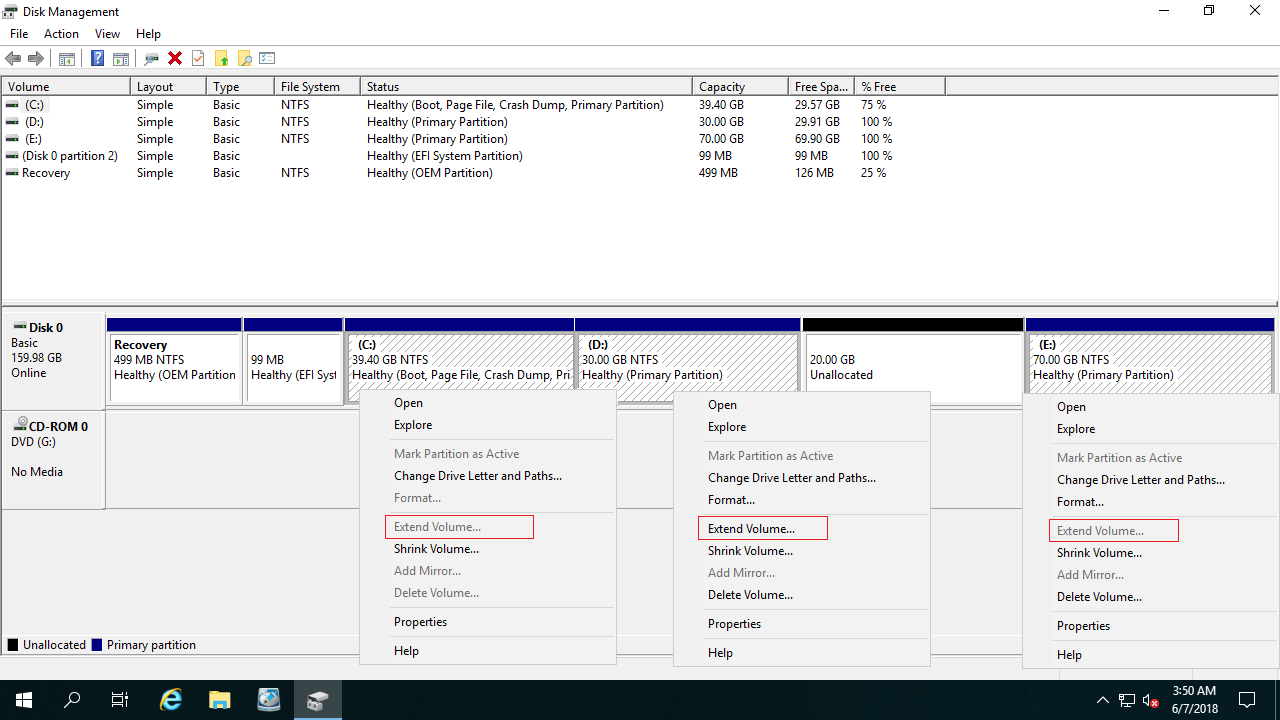
Starting from Windows Server 2008, Microsoft added "Shrink Volume" and "Extend Volume" functions in the native Disk Management tool. They can help administrators resize partition without losing data, but they have strict limitations. Disk Management cannot move free space from one partition to another.
As you can see in the screenshot, the "Extend Volume" function is disabled for both C and E drives after shrinking drive D.
This issue occurs because of two limitations:
- "Shrink Volume" can only make Unallocated space on the right side.
- "Extend Volume" can only combine Unallocated space to the left adjacent partition.
After shrinking D drive, the Unallocated space is non-adjacent to C drive, and is on the left of E drive. Therefore, Extend Volume is disabled for both partitions. The command-line diskpart tool has the exact same limitations.
2. Move Free Space from D/E to C Drive on Windows Server 2019/2022
To move free space from D (or other partitions) to the C drive, you need third-party partition software. Because of the potential risk of data loss, you should always back up the server and use safe software. Compared to other tools, NIUBI Partition Editor provides unique data protection technologies and faster processing speeds:
- Virtual Mode – All operations are listed as pending for preview. Real disk partitions won't be modified until you click "Apply" to confirm.
- Cancel-at-will – You can cancel ongoing operations safely at any progress without losing data or damaging partitions.
- 1-Second Rollback – If any error is detected while modifying partitions, it automatically reverts the server to its original status instantly.
- Hot Clone – Clone the system disk or data partition without interrupting the server. You can boot from the cloned disk immediately if the primary disk fails.
- Advanced file-moving algorithm – 30% to 300% faster when shrinking, moving, or cloning partitions.
Steps to move disk space from D to C drive in Windows Server 2019/2022:
- Launch NIUBI Partition Editor, right-click the adjacent data partition D:, and select "Resize/Move Volume".
- In the pop-up window, drag the left border towards the right to shrink the drive and create Unallocated space on the left.
- Right-click the C: drive, select "Resize/Move Volume" again, and drag its right border towards the right to combine this Unallocated space.
- Click "Apply" on the top left to execute.
If you want to move free space from a non-adjacent partition (such as E:), there is an extra step to move Unallocated space to the left of drive D before you can add it to the C drive.
3. Cannot Move Disk Space from Another Disk
If there is no other partition or not enough free space on the same disk, no software can move free space from a different, separate physical disk. The size of a physical hard disk is fixed. However, there are two ways to solve this problem depending on your server environment.
Method 1: Copy to a Larger Disk
If you use a physical server, you can clone the disk to a larger one. Then you can add the extra disk space to the C drive. Follow the steps in the video:
Method 2: Expand Virtual Disk in VMware/Hyper-V
If you run Windows Server 2019/2022 as a virtual machine in VMware or Hyper-V, you can expand the virtual disk directly without copying to another disk. Follow the guides:
After expanding the virtual disk, the additional space will be shown as Unallocated at the end of the original disk. You can then use NIUBI Partition Editor to move and merge Unallocated space into the C drive.
In Summary
To move free space in Windows Server 2019/2022, native Disk Management and diskpart commands are useless due to their strict limitations. With NIUBI Partition Editor, this task becomes fast and safe. You just need to drag and drop on the disk map to shrink, move, and extend partitions. The steps are the same whether you use physical disks, hardware RAID arrays, or virtual machines. Beyond moving disk space and resizing partitions, it helps you perform many other disk and partition management operations.
 © 2009 - NIUBI Technology All Rights Reserved. |