
A hard disk drive is an indispensable component in a Windows server, no matter whether you use an SSD, mechanical HDD, or a hardware RAID array. You need to perform many operations on disk partitions. For example: initialize a brand-new disk, create, delete, and format partitions. To accomplish these tasks, there is a native free partition manager in Windows Server 2022 to help you. But if you want to clone a disk to a larger one, convert disk partition types without losing data, or shrink, move, extend, or merge partitions, server partition software is required. This article introduces the native free partition manager in Server 2022 and the best disk partition software for Windows Server 2022/2025.
Native Free Partition Manager in Windows Server 2022
There is a built-in "Disk Management" tool in Windows Server 2022. It has no differences or improvements compared to previous versions. If you just want to create, delete, or format a partition, you may try this native free partition manager. Disk Management has 4 kinds of abilities.
1. Basic Management Ability
Before saving files to a brand-new disk, you must initialize it as MBR or GPT, and then create partitions on this disk. Finally, format the partition with a file system. The most common types of file systems in Windows computers are NTFS and FAT32. Disk Management can help you accomplish these tasks. In addition, it is able to set an "Active" partition and change drive letters and paths.
2. Convert Disk Type
If you initialized a disk as MBR, you can only build a maximum of 4 Primary partitions and use 2TB of space. To overcome these shortages, you should convert MBR to GPT. Disk Management gives you this option, but you must delete all partitions on the disk before converting.
Disk Management has another option to convert a "Basic" disk to "Dynamic". But after that, only one operating system is bootable. What's worse, it cannot convert a Dynamic disk back to Basic without losing data.
3. Manage Dynamic Disk Volumes
In the very early days, hard disks were small and expensive. To maximize the use of disk space and improve data read/write speeds and fault tolerance abilities, Microsoft developed Dynamic disk volumes. The reality is that this technology is not perfect; it brings many problems and consumes a lot of resources. Nowadays, few people use Dynamic disk volumes; hardware RAID is a much better choice.
4. Change Partition Size
The free partition manager in Windows Server 2022 has "Shrink Volume" and "Extend Volume" functions to help adjust partition size, but only NTFS partitions can be resized. Furthermore, it can only shrink a partition and make Unallocated space on the right. It cannot extend a partition by shrinking another one. Without disk partition software, you must delete the adjacent partition on the right before extending the left partition.
Best Disk Partition Software for Windows Server 2022
There are many disk partition software programs for Server 2022 and other versions on the market, but which is the best? Everyone has their own preferences, but you may want to consider the following aspects:
- Clean interface and ease of use.
- System and data protection ability (the most important).
- Efficiency.
Download NIUBI Partition Editor, and you will see the main window with 5 sections.
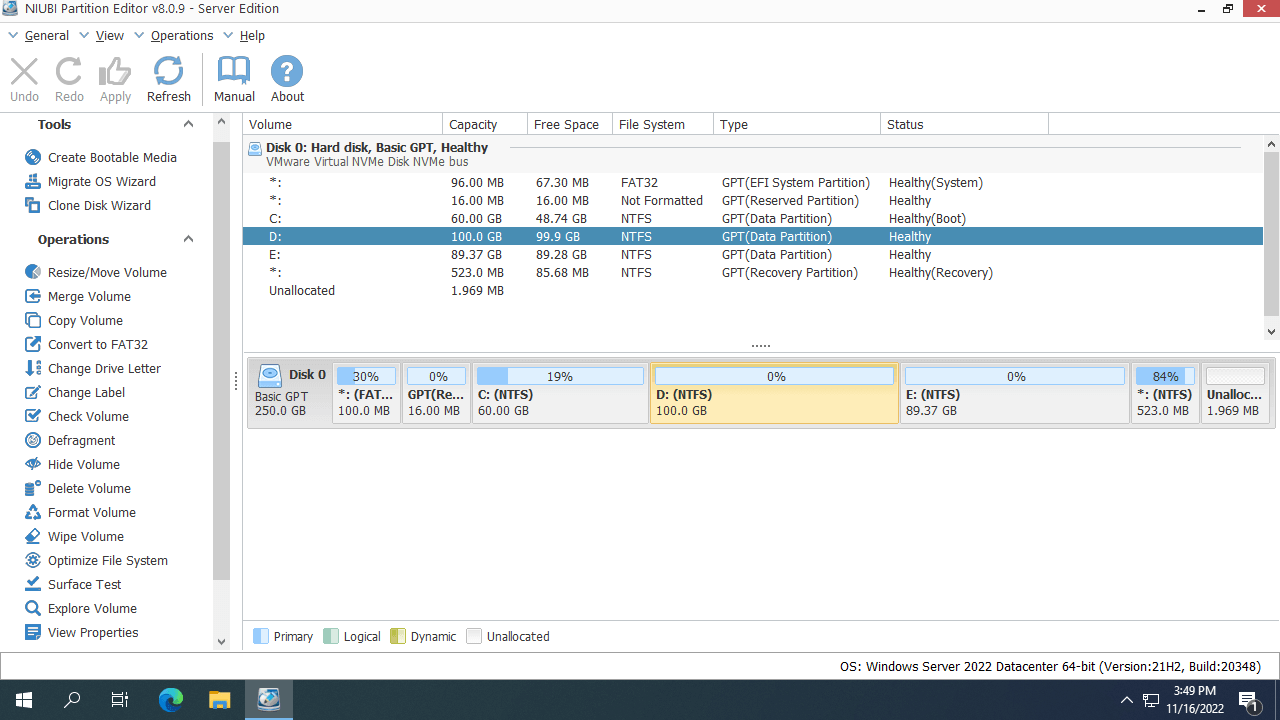
- All single partitions with detailed parameters.
- All physical, RAID array, and virtual disks with graphical structures.
- Available operations for a selected disk or partition; unavailable operations are hidden automatically to keep the interface clean.
- Pending operations in virtual mode.
- Cancel, redo, or apply the pending operations.
The Safest Partition Manager for Windows 2022 Server
There is a potential risk of system and partition damage when you modify server disk partitions. It is not enough even if you have an image backup tool. You need a reliable and safe server partition manager. Better than other tools, NIUBI Partition Editor has advanced technologies to protect your system and data.
- Virtual Mode - The real disk partitions will not be changed until you click the "Apply" button to confirm.
- Cancel-at-Will - You can cancel any incorrect ongoing operations without destroying the partitions.
- 1-Second Rollback - If the program detects a known error while modifying a disk partition, it automatically reverts the server to its original status in a flash.
- Hot-Clone - It can clone a disk partition without server interruption. You can clone the system disk regularly and boot from the cloned disk immediately if the system disk fails.
The Fastest Disk Partition Manager for Windows Server 2022
Besides data protection, efficiency is also important. For example, when shrinking a partition rightward or moving a partition, all files within the partition will be relocated to new locations. This process can take a long time if there are a large number of files. With the help of its advanced file-moving algorithm, NIUBI Partition Editor is 30% to 300% faster than other tools when shrinking, moving, and cloning disk partitions. Nobody likes to waste time, especially when some operations require the server to reboot in order to proceed.
This disk partition manager is compatible with Windows Server 2022/2025 and previous Server 2019/2016/2012/2008/2003. All types of SSD/HDD/RAID, VMware/Hyper-V/VirtualBox virtual disks, USB flash drives, and memory cards are supported. Watch the tutorials or video guide to learn how it works.
 © 2009 - NIUBI Technology All Rights Reserved. |