
As with previous versions, administrators will inevitably need to change partition size in Windows Server 2022/2025 at some point. Typical scenarios include shrinking an oversized volume to reallocate space, or attempting to increase partition size when the C drive runs out of storage. To modify your current volume configuration, you can utilize native Windows utilities or specialized third-party software. Due to inherent architectural restrictions, built-in tools frequently fail to resolve storage issues under complex disk layouts. This article introduces two effective methods to safely change partition size and optimize server storage without data loss.
1. Change Partition Size in Server 2022/2025 Using Native Utilities
Windows Server 2022/2025 includes a native Disk Management utility; however, its core partition management architecture remains functionally identical to legacy versions like Server 2008. Consequently, administrators encounter severe architectural restrictions when attempting to change partition size using this built-in snap-in. For example:
- Only NTFS and ReFS volumes can be resized; FAT32 and alternative file systems are completely unsupported.
- The utility can only shrink an NTFS volume from right to the left, generating unallocated space exclusively on its right side.
- It cannot shrink a partition beyond the physical sector where any unmovable system files reside.
- It can only expand an NTFS volume when there is a block of adjacent unallocated space located directly on the right.
In short, Disk Management is only suitable for shrinking an NTFS volume to create a new storage partition. If your ultimate goal is to increase partition size by shrinking an alternate data volume, this native tool cannot resolve the issue.
How to decrease partition size in Server 2022/2025 without software:
- Press the Windows key + X simultaneously on your keyboard and select Disk Management from the menu list.
- Right-click the target NTFS partition and select the "Shrink Volume" option from the context menu.
- Enter the desired capacity in megabytes and click the "Shrink" button; maximum available space is allocated by default if no value is specified.
How to increase partition size using Disk Management (requires deletion):
Caution: You must transfer all files from the adjacent right partition to another drive before proceeding, as this method requires deleting it completely.
- Right-click the contiguous partition located on the right side of your target volume and select "Delete Volume".
- Right-click the left adjacent volume (which must be formatted as NTFS) and select the "Extend Volume" option.
- Follow the Extend Volume Wizard, clicking "Next" until you click "Finish".
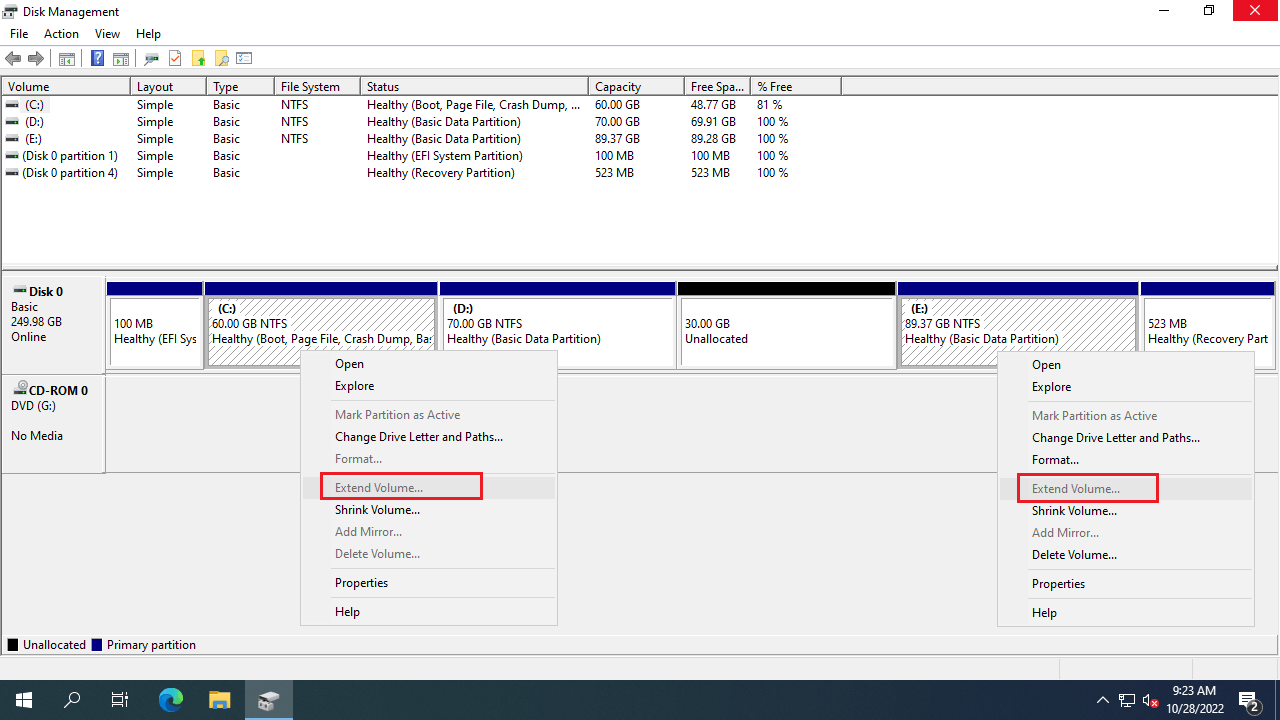
The primary flaw of the built-in utility is its inability to modify the structural start position of a storage volume. Therefore, it cannot shrink a volume from left to right, nor can it expand a partition using unallocated space on its left. This inherent limitation explains why the "Extend Volume" option remains greyed out even after shrinking an adjacent drive via Disk Management.
2. Increase Partition Size in Server 2022/2025 via Command-Line
For administrators who prefer command-line interfaces, the native DiskPart utility can change partition size in Windows Server 2022/2025. However, this command-line tool shares the exact same operational limitations as the graphical Disk Management snap-in. If you want to utilize these native command tools, you can follow the specific walkthroughs below:
- How to Shrink a Partition Using DiskPart
- How to Extend a Volume Using DiskPart
- How to Shrink and Extend Partitions via PowerShell
To safely change partition size under complex configurations, relying on dedicated storage management software remains the recommended approach.
3. Safely Resize Partitions in Server 2022/2025 with Dedicated Software
Compared to native utilities, professional partition software provides significant advantages when modifying drive layouts:
- Full compatibility for resizing both NTFS and FAT32 file systems seamlessly.
- The ability to shrink a volume and generate unallocated space on either its left or right side.
- The capability to relocate unmovable system files, allowing volumes to shrink to their minimum footprint.
- The flexibility to increase partition size by merging either contiguous or non-adjacent unallocated space on the same physical disk.
Because modifying production server volumes involves inherent risks, using verified software is essential to prevent unexpected system or partition damage. Unlike alternative utilities, NIUBI Partition Editor integrates advanced Virtual Mode, Cancel-at-will, 1-Second Rollback, and Hot-Clone technologies to comprehensively safeguard your environment.
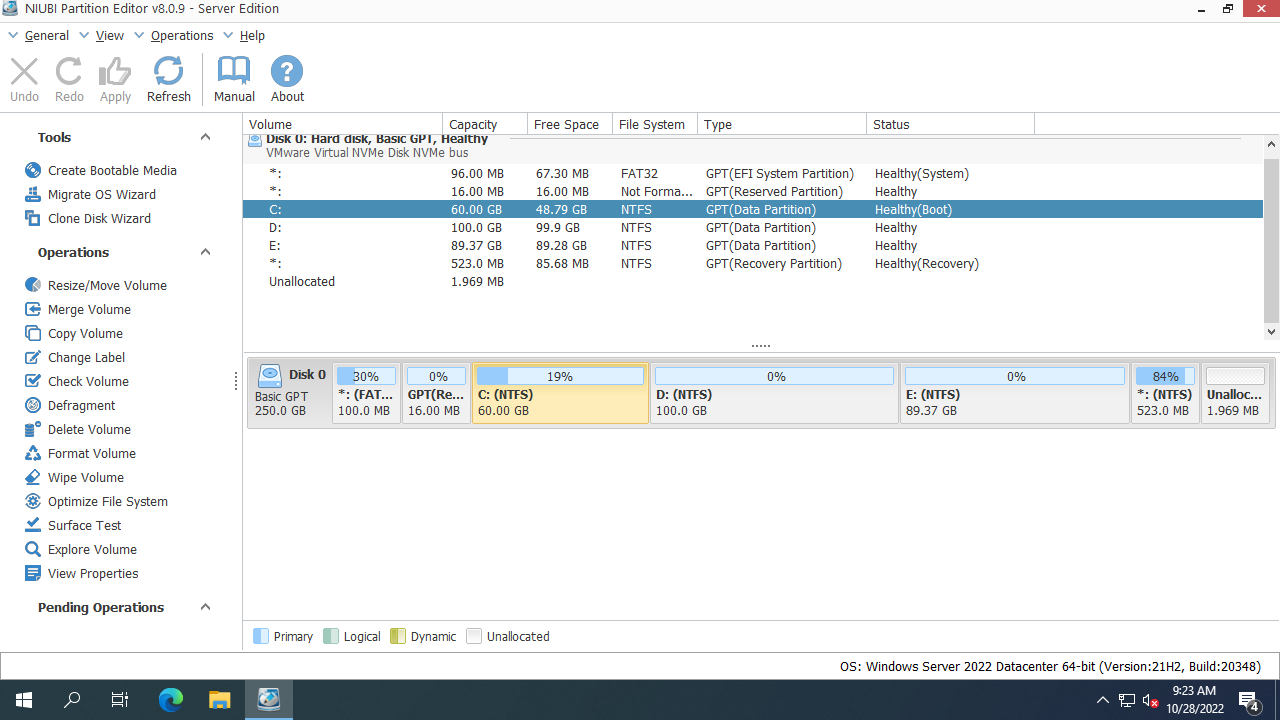
Upon downloading and launching NIUBI Partition Editor, the main console will display your complete disk partition layout along with detailed storage parameter insights.
How to safely change partition size in Windows Server 2022/2025 without data loss:
- Right-click any NTFS or FAT32 partition and select "Resize/Move Volume". In the graphical window, drag either border toward the center to shrink the volume and generate unallocated space. For example, dragging the right border toward the left creates unallocated space on the right side of the partition.
- To create a new volume, right-click this unallocated space and select "Create Volume". To expand an alternative drive, right-click that target volume, select "Resize/Move Volume", and drag the adjacent border to absorb the contiguous unallocated space.
- Click "Apply" in the top-left corner to execute the pending changes.
When attempting to expand a volume on a completely full disk, you can clone the disk to a larger drive to leverage the additional storage capacity.
Beyond resizing, shrinking, and extending partitions in Windows Server 2022/2025 and legacy editions from Server 2003 to 2019, NIUBI Partition Editor provides a comprehensive toolkit to clone, merge, wipe, convert, and hide partitions, as well as optimize file systems and scan for bad sectors.
 © 2009 - NIUBI Technology All Rights Reserved. |