
The System Reserved partition holds the Boot Configuration Database, Boot Manager, Windows Recovery Environment, and some other files. It may become full someday, so it is highly recommended to extend the System Reserved partition. If you want to convert an MBR disk to GPT or upgrade to a higher Windows version, you also need to increase the System Reserved partition size in advance. Windows Server 2012 has an "Extend Volume" function in the native Disk Management tool, but it cannot do anything to this small partition. To extend the System Reserved partition in Windows Server 2012 R2, you need safe disk partition software.
Why Disk Management Can't Extend System Reserved Partition in Server 2012 R2
As with previous versions, Windows Server 2012 has built-in "Shrink Volume" and "Extend Volume" functions in Disk Management to help change partition sizes. However, if you want to extend the System Reserved partition in Server 2012 with Disk Management, it is impossible, because:
- Disk Management can only generate unallocated space on the right side when shrinking a partition.
- The "Extend Volume" function can only expand a partition when there is adjacent unallocated space on the right side.
- Disk Management cannot move a partition or unallocated space.
As shown in the screenshot, unallocated space is generated on the right side of the C drive after shrinking this partition. Extend Volume is greyed out for the System Reserved partition in Server 2012 Disk Management, because the unallocated space is non-adjacent to the System Reserved partition.
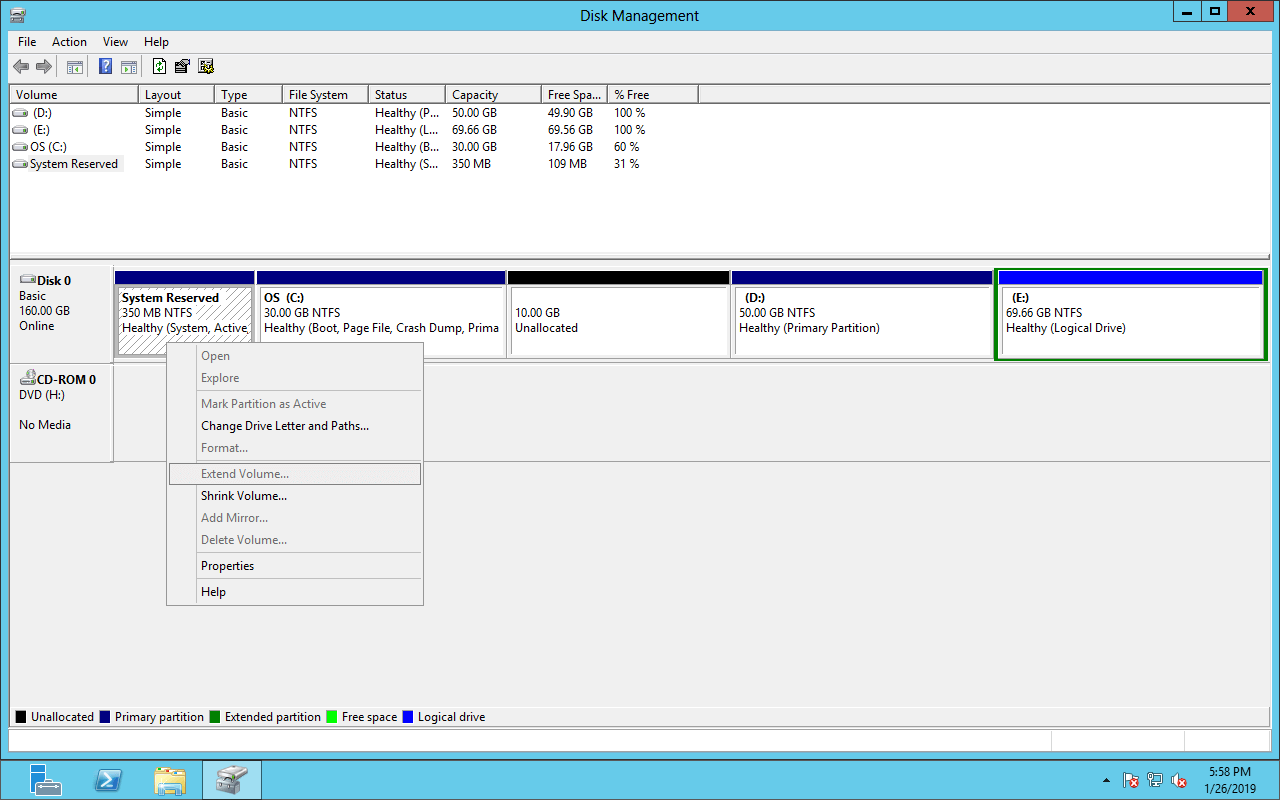
The only way to get contiguous unallocated space is by deleting the middle C: drive, which cannot be done. Thus, you need a 3rd-party partition tool for Server 2012.
How to Extend System Reserved Partition in Windows Server 2012 R2
With disk partition software such as NIUBI Partition Editor, you can shrink the C drive and generate unallocated space on the left side, then you can extend the System Reserved partition easily. If you do not want to shrink the C drive, you can shrink another non-adjacent volume on this disk, and then move the unallocated space next to the System Reserved partition.
It requires a server reboot to shrink or move the C drive.
Steps to extend the System Reserved partition in Windows Server 2012 R2:
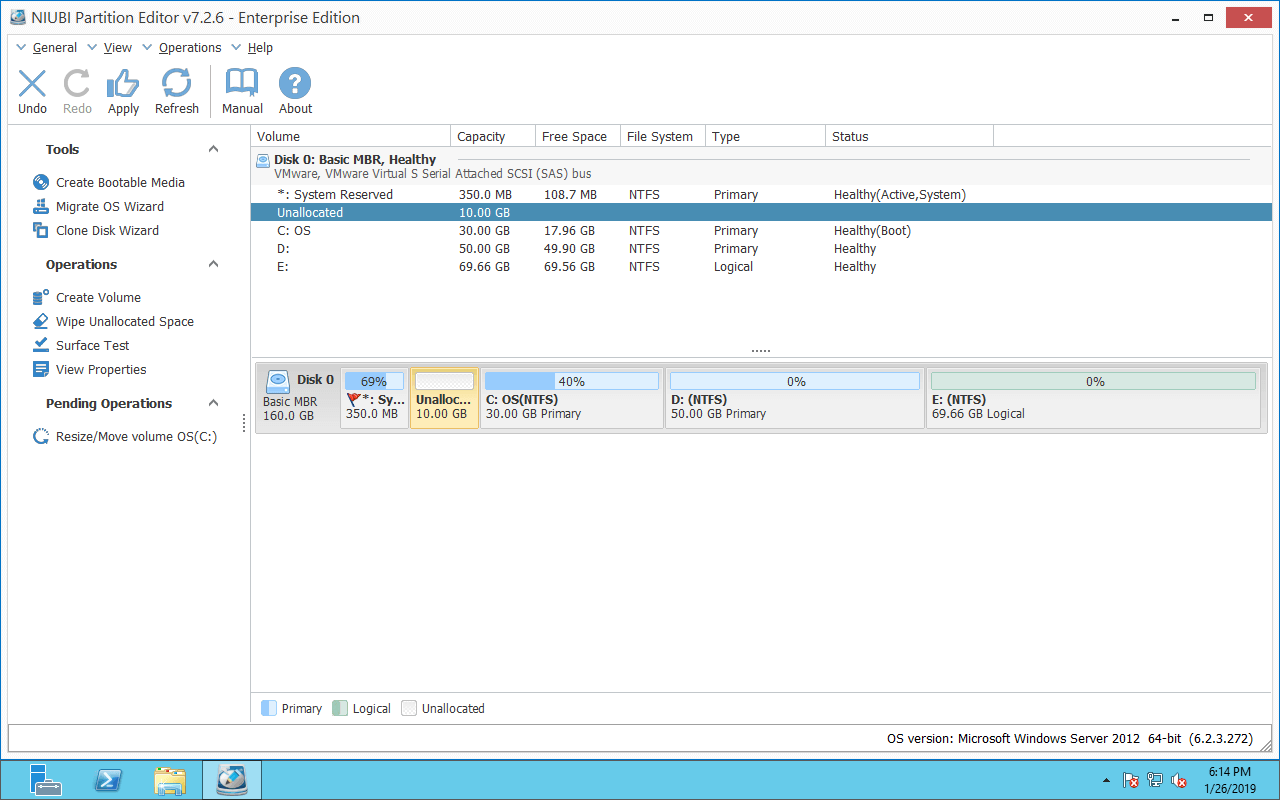
Step 1: Download NIUBI Partition Editor, right-click the C: drive and select "Resize/Move Volume".
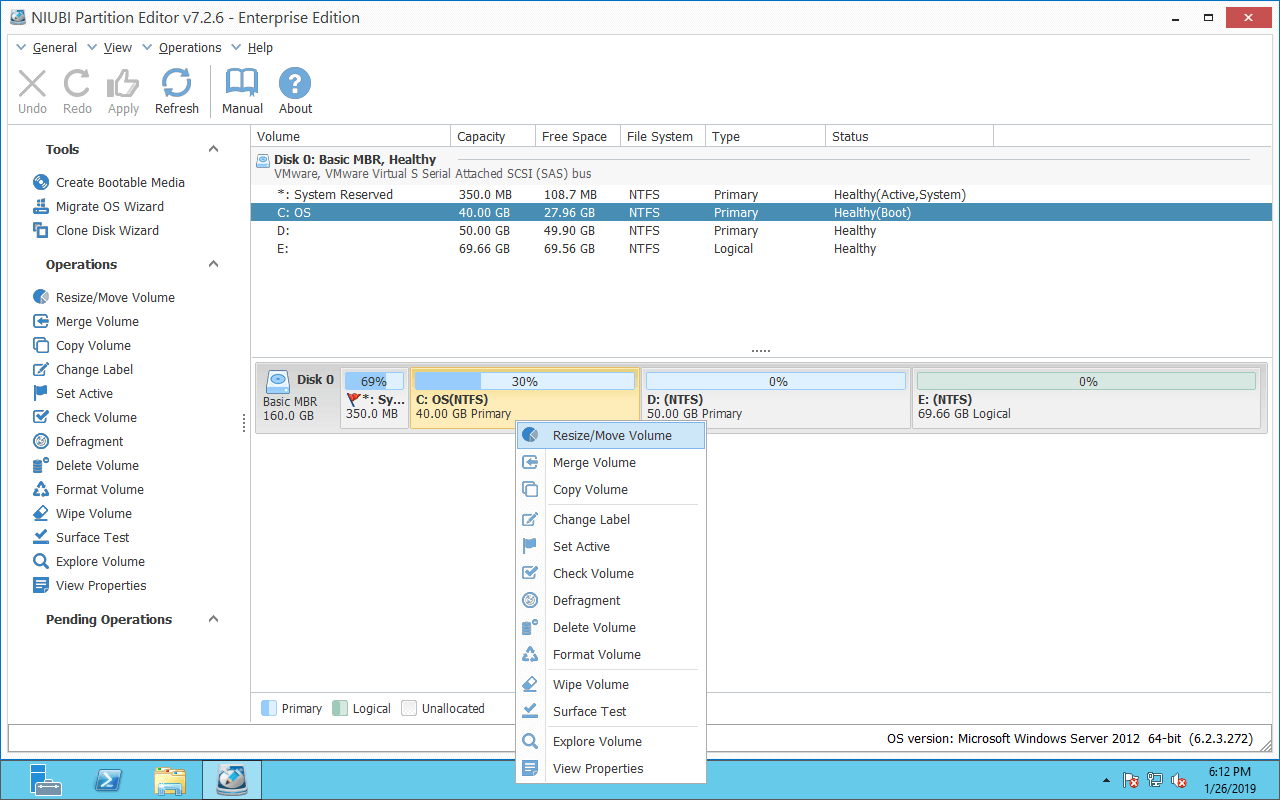
Drag the left border to the right, or enter an amount in the box behind "Unallocated space before" in the pop-up window.
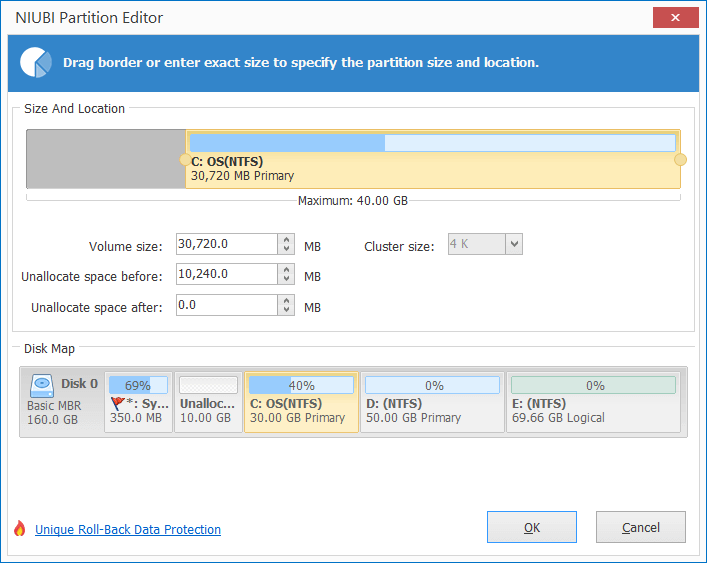
Click OK. The C drive is shrunk, and unallocated space is generated behind the System Reserved partition.
Step 2: Right-click the System Reserved partition and click "Resize/Move Volume" again, then drag the right border to the right in the pop-up window.
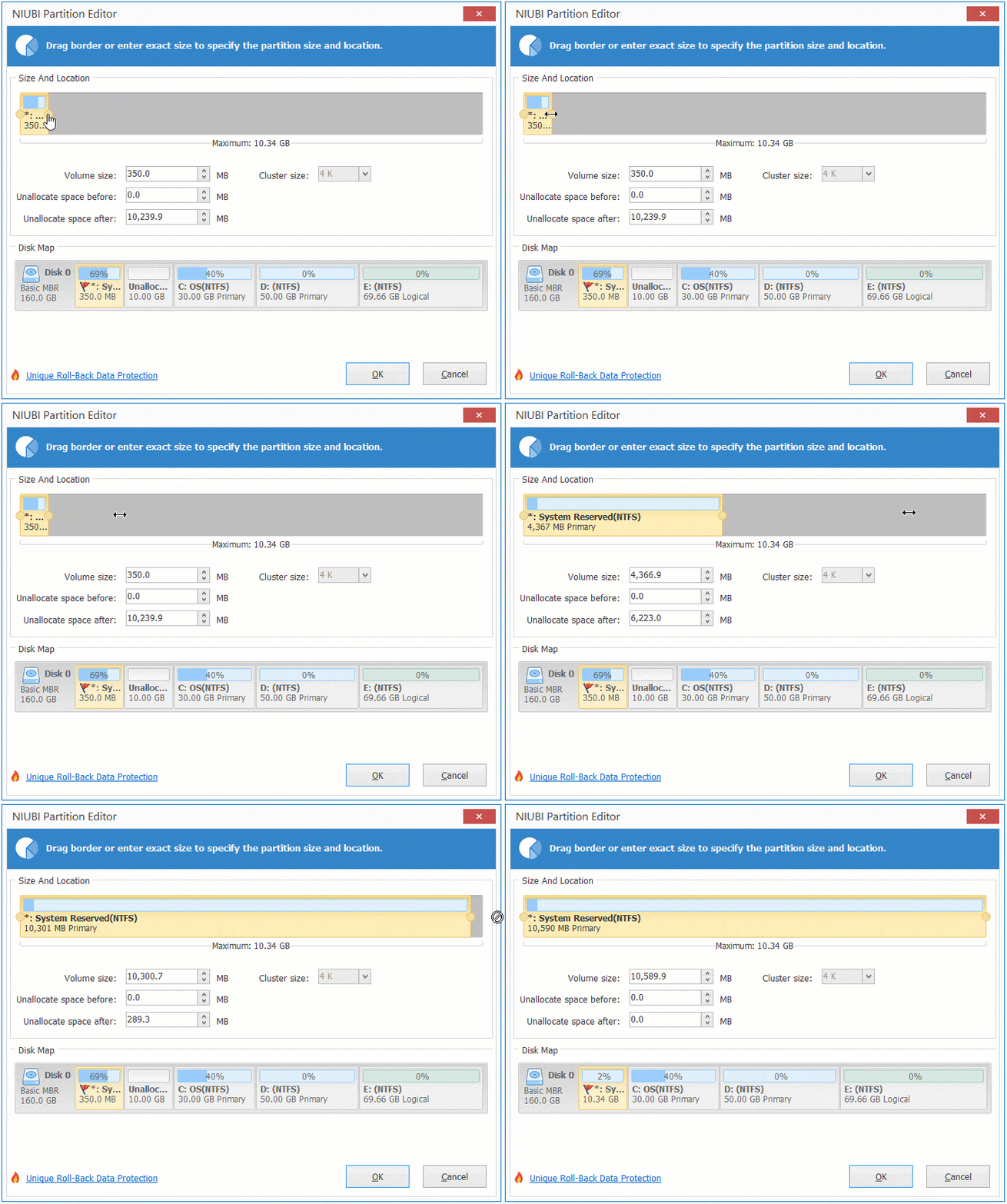
Click OK. Unallocated space is added into the System Reserved partition.
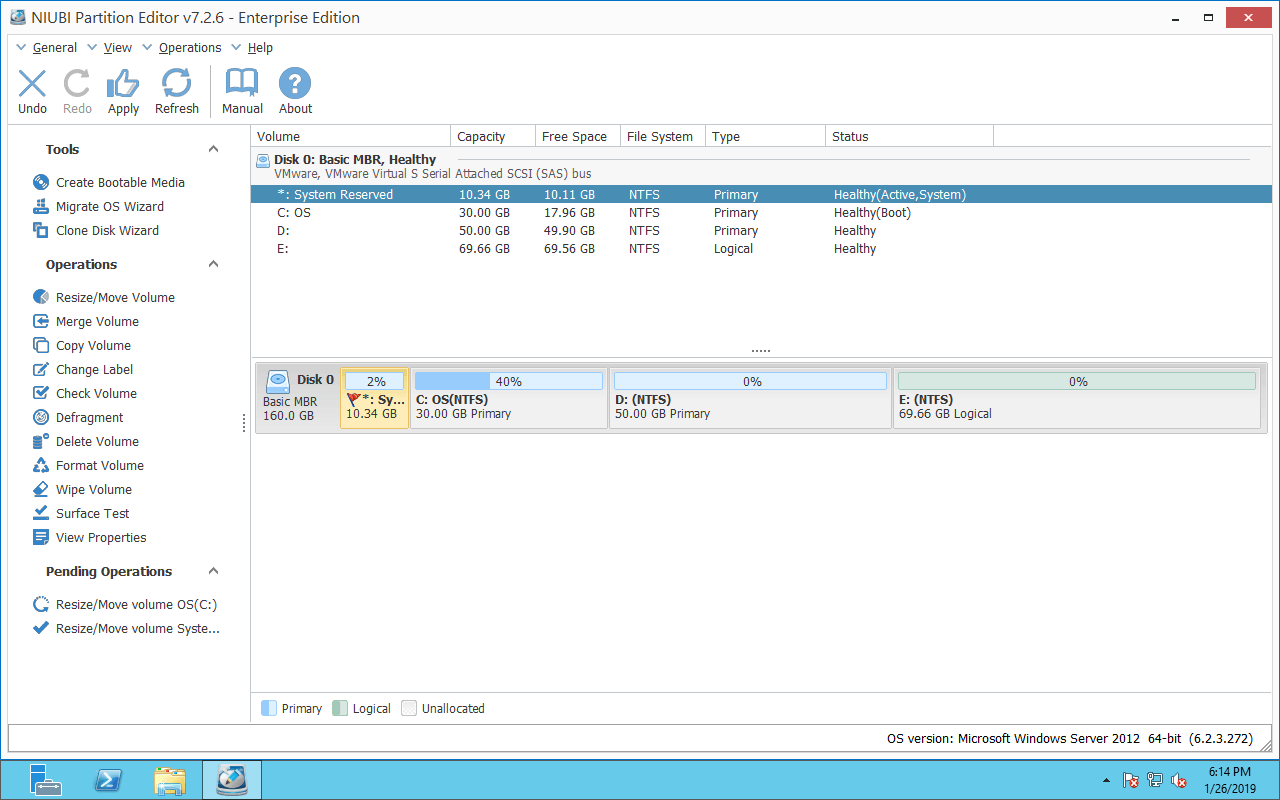
Step 3: Click "Apply" on the top left to execute.
NIUBI Partition Editor is designed to work in virtual mode in advance; real disk partitions will not be modified until you click "Apply" to confirm.
Watch the video to see how to increase the System Reserved partition size in Windows Server 2012 R2:
Take Care of Data When Resizing System Reserved Partition
There is potential system/partition damage risk when shrinking the C drive and extending the System Reserved partition in Windows Server 2012. This is because all parameters of both drives must be changed correctly, all files in the system C drive must be moved to new locations, and system boot-related files must also be updated.
Nobody wants to see damage happen; therefore, it is highly recommended to back up first and run safe partition software. Better than other tools, NIUBI Partition Editor has powerful 1-Second Rollback technology. If it detects any error while resizing partitions, it automatically reverts the disk partitions to their previous state in a flash. Furthermore, it has Virtual Mode, Cancel-at-Will, and Hot-Resize technologies, as well as an advanced file-moving algorithm to help resize partitions faster and more safely.
For maximum data security, you can clone the system disk to another drive. Since NIUBI Partition Editor can clone disk partitions without requiring a server reboot, you can easily perform this task right before resizing or as a routine backup. If the original system disk fails, you can restore operations in minutes by simply booting from the cloned disk.
Besides shrinking and extending partitions in Windows Server 2012/2016/2019/2022/2025, NIUBI Partition Editor helps you perform many other disk partition management operations.
 © 2009 - NIUBI Technology All Rights Reserved. |